Audit & Report
Professional reports that look
like real audits
Get a clear, structured view of your website’s accessibility issues with professional audit reports designed to make findings easier to review, understand, and share.
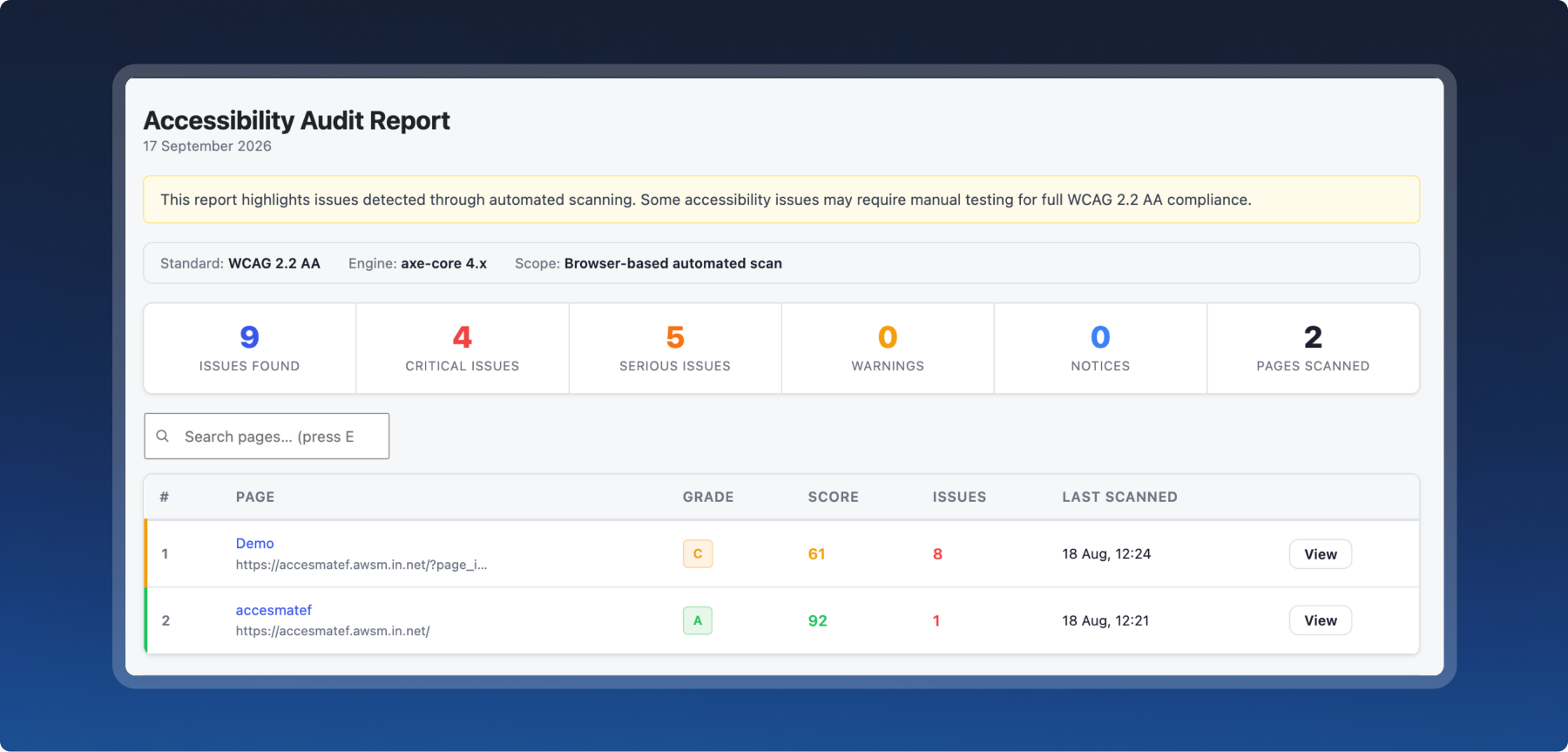
Turn scan results into meaningful action.
Explore your audit results from the overall website level down to individual pages and findings.
-
Understand your scan at a glance
View the total number of issues detected, their severity, pages scanned, and other key information from your audit.
-
Find exactly where problems occur
See which pages have accessibility issues, review their scores, and identify where attention is needed.
-
Investigate individual findings
Open individual results to understand what was detected, which element is affected, and which accessibility requirement is involved.
-
Prioritize your work
Use issue severity and organized findings to identify the problems that should be addressed first.


Why does it matter?
Accessibility audits can produce a lot of technical information. A structured report helps turn those findings into a clearer picture of what is happening across your website, so your team can focus on the issues that need attention.
-
Prioritize the right problems
Identify critical and serious findings so your team can focus on higher-priority accessibility barriers first.
-
Reduce manual investigation
Quickly see affected pages and issue counts instead of searching through your website to find problems yourself.
-
Create a shared understanding
Give designers, developers, content teams, and stakeholders a common view of the accessibility issues that need to be addressed.
AI Fix Suggestions
Fix issues faster with AI suggestions
AccessMate uses AI to help you understand accessibility issues and suggest practical ways to address them—so you can move from finding a problem to taking action faster.
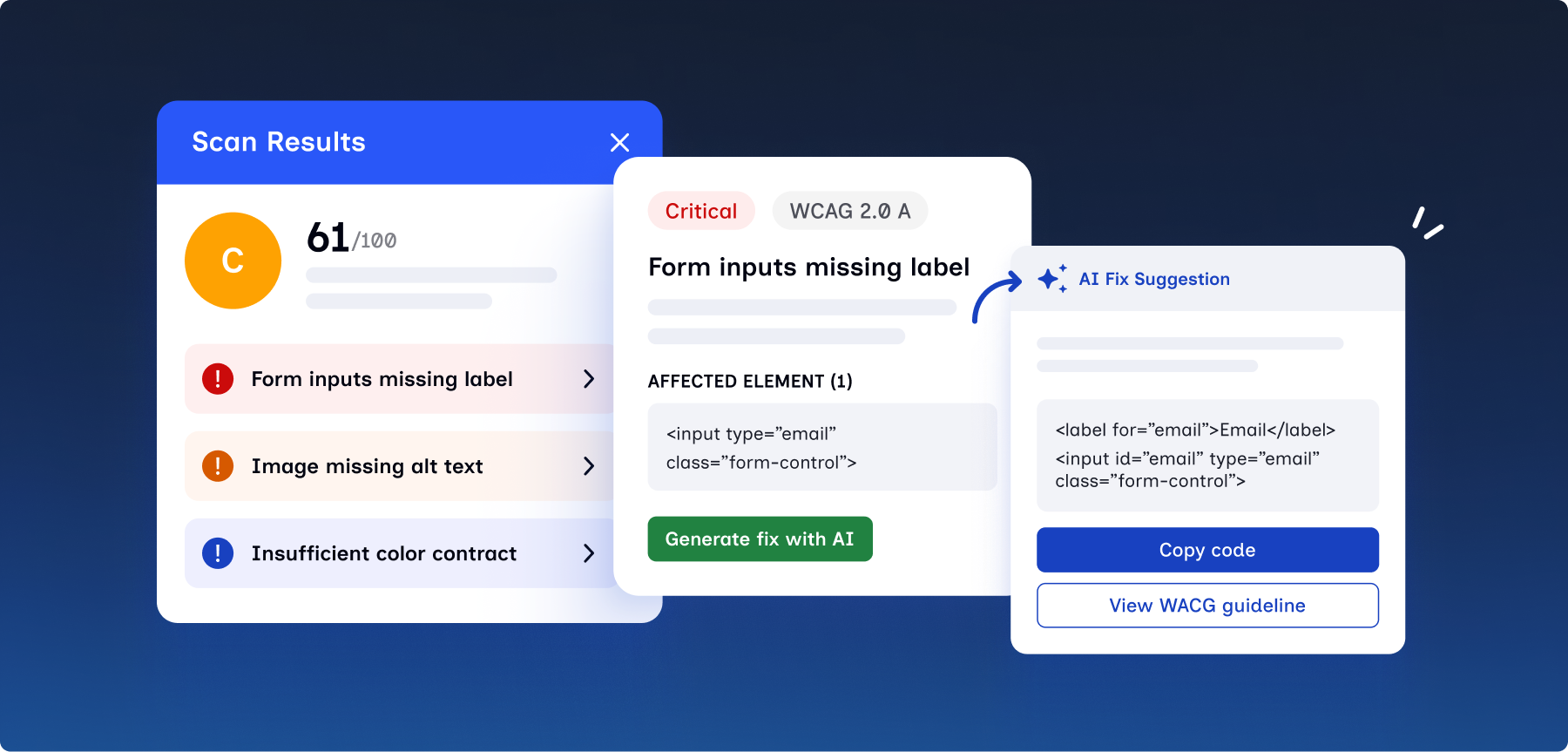
From accessibility findings to practical next steps.
Finding an accessibility issue is only the beginning. AccessMate uses AI to help explain what the issue means, why it matters, and what you can do about it. Instead of leaving you with a technical error, it gives you clearer guidance for deciding what to change.
Use the AI that fits your workflow.
Use the AI provider that fits your workflow, AccessMate supports Anthropic Claude, OpenAI, Google Gemini and Ollama giving you flexibility and reliaible suggestions.
-
 Claude
-
 OpenAI
-
 Gemini
-
 Ollama
Turn accessibility findings into
actionable fixes.
-
Understand the issue
Get a clear, plain-language explanation of what the problem is and why it matters.
-
Get practical suggestions
Receive step-by-step recommendations on how to address the issue
-
Explore code examples
Copy ready-to-use code snippets where applicable to speed up implementation.


Why does it matter?
Accessibility issues can be technical and time-consuming to understand. AI Fix Suggestions helps turn scan findings into clearer guidance, reducing guesswork and giving you a more practical starting point for remediation.
-
Save time
Spend less time researching what an accessibility error means and more time addressing it.
-
Build confidence
Understand why an issue matters before making changes to your website.
-
Move from finding to fixing
Turn audit findings into practical next steps instead of leaving them unresolved.
Visitor Accessibility Widget
Give every visitor more control
over their experience.
AccessMate gives visitors simple tools to adjust how your website looks, feels, and behaves — helping them create a browsing experience that better suits their individual needs.
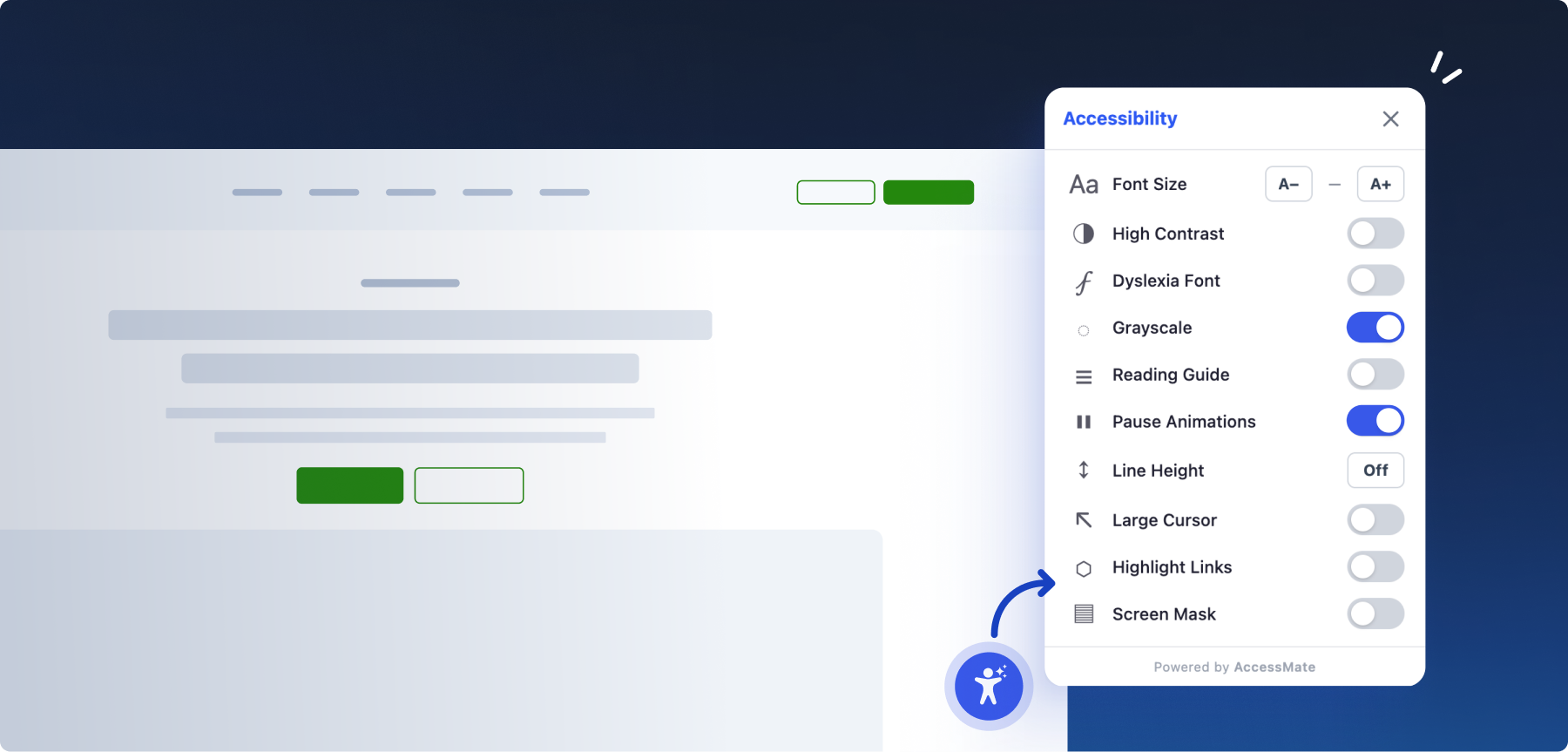
Let visitors adjust the experience to suit them.
A collection of accessibility controls helps visitors change how content is presented and
how they interact with your website.
-
Reading & Content
Make content easier to read
- Font Size
Increase or decrease text size for more comfortable reading. - Line HeightAdjust the spacing between lines to make content easier to follow.
- Dyslexia FontEnable an alternative typeface designed to support more comfortable reading.
- Font Size
-
Visibility & Contrast
Make important content easier to see
- High ContrastIncrease contrast between content and its background.
- GrayscaleReduce reliance on colour when viewing the website.
- Highlight LinksMake links easier to identify within page content.
-
Navigation & Focus
Make navigating the page easier
- Large CursorIncrease cursor size and visibility.
- Reading GuideProvide a visual guide to help users maintain their place while reading.
- Screen MaskReduce surrounding visual distractions and focus attention on a specific area.
- Pause AnimationsAllow visitors to stop animated content when motion is distracting or uncomfortable.


Why does it matter?
Accessibility isn’t experienced the same way by everyone. Giving visitors control over certain aspects of the interface can make content easier to read, navigate, and interact with.
-
More comfortable browsing
Give visitors tools to adjust the experience around their preferences.
-
Greater control
Let people decide which accessibility adjustments are useful to them.
-
A more adaptable website
Support different browsing needs without creating a separate version of your website.
Accessibility Statement
Create a clear accessibility statement for your website
Generate a professional accessibility statement by providing information about your website, accessibility efforts, conformance status, technical support, and feedback process.
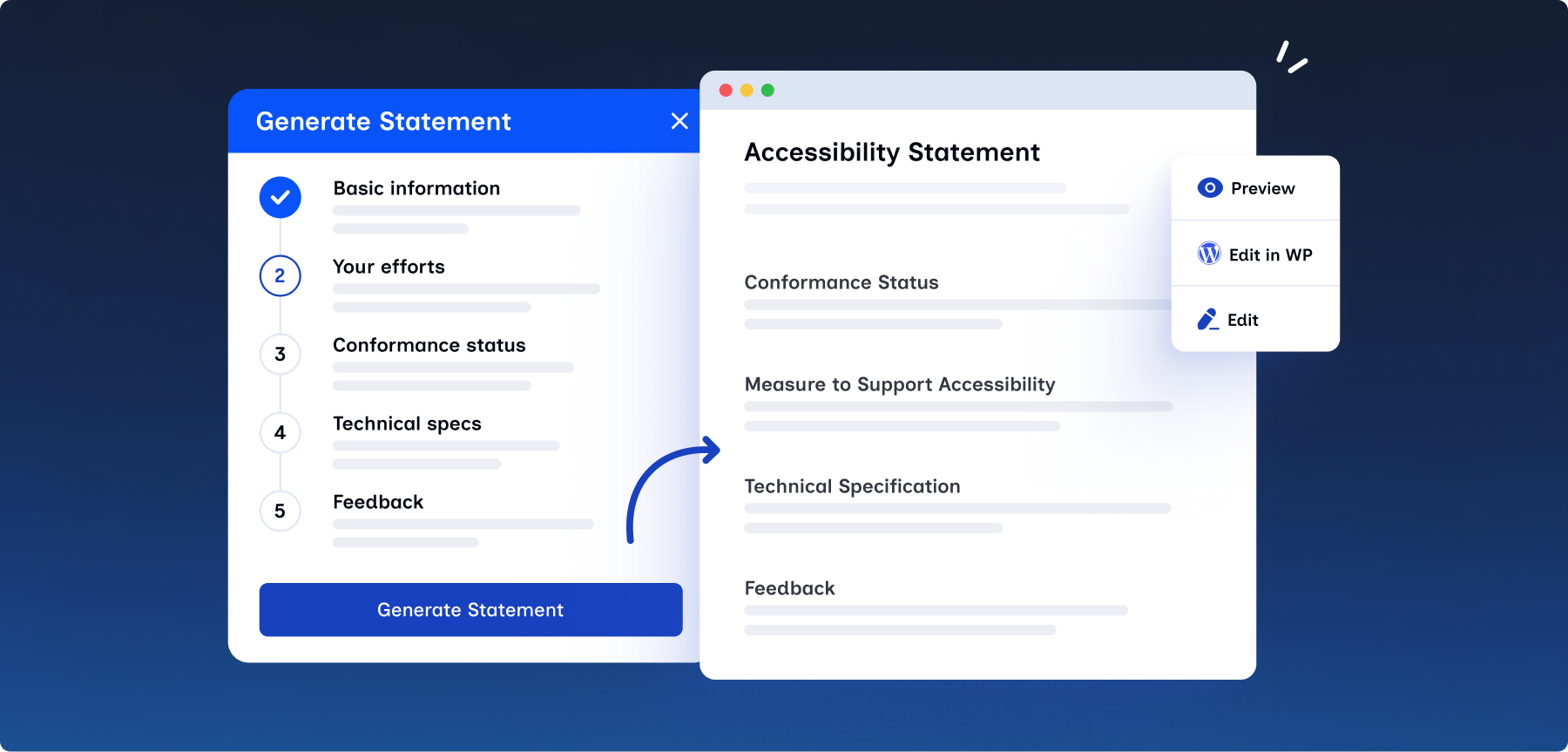
Turn your accessibility information into a ready-to-publish statement.
Provide the details that describe your website’s accessibility, and Accessmate turns them into a structured statement you can review and publish.
-
Add your website information
Provide basic details about your organisation and website to get your statement started.
-
Describe your accessibility status
Document your accessibility efforts, conformance status, technical support, and other relevant information.
-
Generate and publish your statement
Turn your information into a structured accessibility statement that you can review, edit, and publish on your website.


Why does it matter?
An accessibility statement gives visitors a clear place to understand your website’s accessibility status, what your organisation is doing, and how they can report accessibility barriers.
-
Set clear expectations
Give visitors a clear understanding of your website’s accessibility status and the standards you are working toward.
-
Make accessibility visible
Show that accessibility is part of your organisation’s ongoing digital practices rather than something hidden or unclear.
-
Make feedback easier
Provide visitors with a clear way to report accessibility barriers and understand how their feedback can be addressed.
Explore what AccessMate can do
AccessMate checks your website against 55+ automated accessibility rules, helping you identify common barriers across content, navigation, structure, and interaction.
-
Color contrast
Text and UI components meet 4.5:1 and 3:1 ratios
-
Image Alt Text
All images have meaningful or empty alt attributes
-
Keyboard Navigation
All interactive elements are keyboard accessible
-
Focus Indicators
Visible focus styles on all interactive elements
-
ARIA Roles & Attributes
Correct use of landmark roles, aria-label, aria-expanded
-
Form Labels
All inputs have programmatically associated labels
-
Heading Structure
Logical hierarchy without skipped levels
-
Link Purpose
Descriptive link text without generic “click here”
-
Language of Page
HTML lang attribute set correctly
-
List Markup
Lists use proper ul/ol/li semantic elements
-
Document Title
Every page has a descriptive <title> element
-
+55 more rules
Full axe-core WCAG 2.1 A & AA ruleset


Frequently asked questions
Still have questions? Find quick answers about AccessMate, how it works, and what you can do with it.
-
Does the accessibility toolbar make my website accessible?
The toolbar provides visitors with additional ways to customize their browsing experience, but it does not fix underlying accessibility problems in your website.
For example, visitors can adjust font size, contrast, line height, cursor size, reading guides, and other settings. However, the underlying website should still be built and maintained with accessibility in mind.
-
Will AccessMate slow down my website?
AccessMate’s visitor toolbar is designed to have a lightweight frontend footprint. The toolbar uses Shadow DOM to isolate its styles from your website, and the current widget bundle is around 3.7 KB gzipped.
-
Does AccessMate provide AI-generated code fixes?
For supported issues, AI can provide suggested code changes or remediation guidance. These suggestions should be reviewed and tested before being applied to a production website.
-
Does AccessMate use my API key?
Yes. You provide your own AI provider API key. AccessMate encrypts the key when storing it in your WordPress database and uses it to communicate with your selected provider.
-
Will AI automatically fix accessibility issues on my website?
No. AI Fix Suggestions are intended to help you understand and remediate issues. You remain in control of which changes are reviewed and implemented.
-
What is an accessibility statement?
No. You can use AccessMate’s accessibility scanner, reports, and visitor toolbar without AI.
AI is completely optional. If you want AI-powered fix suggestions, explanations, or other AI features, you can connect your own API key from supported providers such as Anthropic, OpenAI, Google Gemini, or use a local Ollama setup.
-
What does an accessibility report include?
Reports show detected accessibility issues, the affected elements, their severity, and the relevant accessibility criteria. This helps you understand what needs attention and where the problem occurs.
-
Can AccessMate scan my entire website?
Yes. You can scan individual pages or multiple pages across your website and review accessibility results at the page level.

Ready to make your website accessible?
Join thousands of website owners who are building a better web for everyone.
Get AccessMate – Free